Sunday, June 19, 2016

Library Website examples

This week we are looking around at different school library websites to get ideas to create our own.  I found 2 good examples of websites using Weebly.  Weebly is a highly recommended tool which appears to be user friendly.  You choose your layout and design using other elements as you build your webpage.  I will keep you informed if it is as easy as it appears!

One website that I particularly liked was The Lowe Elementary Library.  Here are a few things that I enjoyed about this site:
  • The website is well-organized.  I liked that there was a section for the students.  They would know where to go to find the tools that they need for their research.  There is also a section for the things that the librarian has taught throughout the school year.
  • I thought it was a good idea to highlight the things that the school has done to promote reading.  There are also links to the Summer Reading Challenge to get students excited about reading.
  • There is an avatar on the home page that has an animated voice.  Using a Voki avatar is something we've just learned about in our class. 
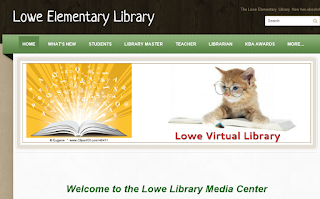
http://lowelibrary.weebly.com/


Another website that I liked was the Newbury Elementary School Library Media Center.  The more I explored these sites the more evident it became that most librarians present their sites in an organized and easy to follow manner.  Here are some highlights:

  • I loved how the librarian used a photo of the READ banner that is hanging in the library.  It is an inviting way to showcase the library and the website.
  • There are many links to popular authors' websites.  Eric Carle, Robert Munsch, and Mo Willems are some of my favorites.
  • I thought it was a good idea to mention books that are new to the library on the homepage.  I think students are always interested in "What's new!"
  • The webpage seems to be kept current.  Summer reading lists are an appropriate thing to find on the website at this time of year. 
http://lowelibrary.weebly.com/

Friday, June 10, 2016

Audio tools and Podcasting

Audio tools

I had a great time playing around with the tools in the sandbox this week.  Vocaroo is very simple and easy to use.  I think that this would be a great tool for teachers and students.  Teachers could use this tool to create a welcome recording and send it out to parents and students before the first day of school.  Teachers could also record themselves calling out word study or vocabulary words and post it on a class website so that students can have access to them for a practice spelling test.  Students who have access to this site at home could record themselves reading words or passages to enhance fluency so they can hear themselves and send the recording to their teacher. 

Voki is fun website to use.  It offers a ton of avatars to use along with your voice recording.  This would be a great "getting to know you" activity for students to do the first week of school.  Many of the students are hesitant to share information about themselves, especially in front of their peers.  Using Voki, students could create an avatar and do a voice recording talking about some of the things they would like to share with the class.  Sudents could also use Voki to create character monologues.  It would be a great wany to explore different points of view and make connections to characters and text. 

My favorite website this week is Blabberize.  Students could draw or search for an image of a famous historical figure and use a recording of their own voice to present facts and information from a first person point of view of the historical figure.  The funny mouth template could make it a very entertaining presentation. 

Students could also create cartoon videos from their own drawings.  This would be a very intriguing activity for those that love comics and graphic novels.  Here is a clip I made using a picture:


McGuire-Day, J. (2016).  Image modified from: Munro, D. (23 May 2015). Dog [photo].  CC BY. Retrieved from https://www.flickr.com/photos/dmunro100/24465058356/in/photolist-DgTPuY-7NKW5G-EkbUo


Podcasting

The Let's Bet Busy Podcast  is by a librarian!   Matthew Winner is an elementary school librarian that provides this weekly podcast.  He interviews authors, illustrators, and others that are in the field of books.  The podcast episodes are at varying lengths and include answers to questions that apply to teachers, students, or parents. 

I would use this podcast for my library when doing book talks or author studies.  Many teachers bring students to the library to check out books related to an author, genre, or topic they are studying.  I would add episodes from the podcast to these presentations so that they can hear the actual author or illustrator speak.  I know from past experience that students are interested in books when they are book talked and adding the actual author audio might take it up to the next technological level!

Friday, June 3, 2016

Infographics

In researching infographics, I came across A high schooler's reading history.

Gross, S. (2013). A high schooler's reading history. Retrieved from http://www.edutopia.org/blog/infographics-students-reading-history-sarah-gross


I love the idea of having students complete their own histories as readers.  I used easel.ly to create my own. The website was easy to navigate; and since the templates were ready-made, it was just a matter of choosing what would work.  I chose the walkway template because it mimicked the original.
At first, I had a difficult time.  The formatting seemed very sensitive.  If I tried to move things around, some of my other images or text boxes would disappear.  After awhile, I began to get the hang of things. There were not a lot of choices as far as adding clip art and shapes, however, the choices that were available were easy to use.  It was also simple to upload images into the infographic and adjust the font type, size, and color. 


McGuire-Day, J. (2016). My road as a reader [infographic]. CC BY-NC.
 
Citations

B3OK. (26 December 2008). Superfudge [photo]. CC BY-NC-SA [original from Doty, R. (1980)] Retrieved from https://www.flickr.com/photos/b3ok/3138709684/in/photolist-5MmH3d-7VhRqb-9uCcPe-5JDyzH-
Brown, J. (23 February 2012). Where the wild things are [photo]. CC BY [original from Sendak, M. (1963)] Retrieved from https://www.flickr.com/photos/hermionish/6777117190

Christensen, K. (7 April 2007). One fish two fish  [photo].  CC BY-NC-ND [original from Seuss. (1960)] Retrieved from  https://www.flickr.com/photos/subcow/445796490

Grover, A. (21 February 2009). The giving tree- my favorite book as a child [photo]. CC BY-SA [original from Silverstein, S. (1964)] Retrieved from  https://www.flickr.com/photos/arvindgrover/3297013755
Imarsman. (8 April 2005). Charlotte’s web book cover [photo].  CC BY-NC-ND [original from Williams, G. (1952)] Retrieved from https://www.flickr.com/photos/imarsman/8803606

Lawford, H. (3 March 2015). 100 books famous in children’s literature [photo]. CC BY-SA. [original from Dr. Seuss [book cover]. (1957)] Retrieved from https://www.flickr.com/photos/herry/16521631058
Menj. (21 December 2005). The lion, the witch and the wardrobe [photo]. CC BY-ND. [original from Lawrie, Robin. (1950)] Retrieved from  https://www.flickr.com/photos/menj/75875398

Shepard, E. (7 July 2011). Tales of a fourth grade nothing [photo]. CC BY-SA. [original from Doty, R. (1972)]. Retrieved from https://www.flickr.com/photos/63852305@N02/5913486502/in/photolist-a1yavQ-qRC6i5-77e1dd-8RzaBM-nMhxLJ-9k3nPv-mDX7gv-mDYQ3J-mDWMJk-aRzqgt-5o8BfX-p6DpCB
Sloan, S. (31 May 2014). Green-eggs-and-ham-cover [photo]. CC BY. [original from Dr. Seuss. (1960)] Retrieved from https://www.flickr.com/photos/43181281@N05/14130147050

Williams, G. M. (27 December 11). The hobbit [photo]. CC BY [original from Tolkien, J. R. (1937)] Retrieved from https://www.flickr.com/photos/45909111@N00/6582274097


Friday, May 27, 2016

This week's photo tools and Creative Commons posting

Image Creation Tools

I must admit that I loved this week's assignments.  I love to manipulate pictures and the tools in the sandbox had so many different things to play with.  Here were some of my favorites:

ImageChef is a website where both text and images can be manipulated.  The site is easy to navigate and user friendly. 
I was impressed by the "Make Visual Poetry" feature.  It would be an excellent way for students to create their own writing heart map.  A heart map is a visual of heart where students list the things they love.  This is an excellent reference point for them throughout the school year when selecting topics they would like to write about.  In the past, my students have handwritten their heart maps in their writing journals.  However, ImageChef is an excellent and more engaging way for the students to create their heart maps in the future. 

                                          McGuire-Day, J. (2016). Heart map. CC BY-NC


Foldplay is a website that is easy to use.  I can't wait to use the foldable books with my students in school.  I like how they give directions on how to cut/fold the little book and it is adorable when finished because it's a tiny book.  I'm thinking of using this the last few days of school to let the students make Memory books using our gallery of pictures at school and write short blurbs about what we have done in class.  I think it will be a fun way to remember the school year. 

Big Huge Labs combines your digital pictures with fun templates to create one of a kind projects.  You could upload your digital picture, then create magazine covers, puzzles, or posters.  This could be a great site to use for creative writing prompts. Each student could also make a trading card of a famous American or a famous explorer.  Students could exchange the trading cards with one another to review important SOLs.  I made a trading card for Jackie Robinson as an example.


McGuire-Day, J. (2016). Image modified from: Sandberg, B. (1954). Jackie Robinson, Brooklyn Dodgers. Retrieved from: https://commons.wikimedia.org/wiki/File:Jackie_Robinson,_Brooklyn_Dodgers,_1954.jpg  CC-0


Creative Commons Image

Here is a photograph that I found on the internet.  Google images was very helpful.  I used the tip that Dr. Kimmel gave us about searching for a photo using the search tools to limit the search to a photo that is labeled for reuse or labeled for reuse with modifications.  My students had to write animal research reports and frogs were a popular choice.
Balboa, C. J. (2007). Red-eyed tree frog. Retrieved from  https://commons.wikimedia.org/wiki/File:Red_eyed_tree_frog.jpg CC-0


This is what the frog looks like with modifications using Tuxpi.

McGuire-Day, J. (2016). Image modified from: Balboa, C. J. (2007). Red-eyed tree frog. Retrieved from https://commons.wikimedia.org/wiki/File:Red_eyed_tree_frog.jpg CC-0


Saturday, May 21, 2016

Welcome

Welcome to Adventures in Reading!

Hello everyone! My name is Jacqui McGuire-Day and this is the first blog that I've ever created.  I am excited to use it as I learn techniques and skills to become a school librarian. 

I fell in love with this background as soon as I saw it.  I think it is perfect for my blog because I love the energy of the design and the colors.  The font that I chose for the text is Open Sans, a sans serif font, because Reynolds (2014) states that serif fonts "work better on computer screens as they lack the counter strokes and thin lines of serif typefaces that can be hard to read at low resolutions" (p. 40).  The font I chose for the title is Droid sans.  I wanted to create harmony by using typefaces from the same sans serif font family for the both title and text (Reynolds, 2014).  I chose a dark brown color for the title because I wanted it to stand out.

Enjoy, and I look forward to many discussions to come!


References

Reynolds, G. (2014). Presentation Zen design: A simple visual approach to presenting in today's world.  Berkeley, CA: New Riders.

Wordle (n.d.). Retrieved May 21, 2016 from http://www.wordle.net/